Set service time, priority, and time windows
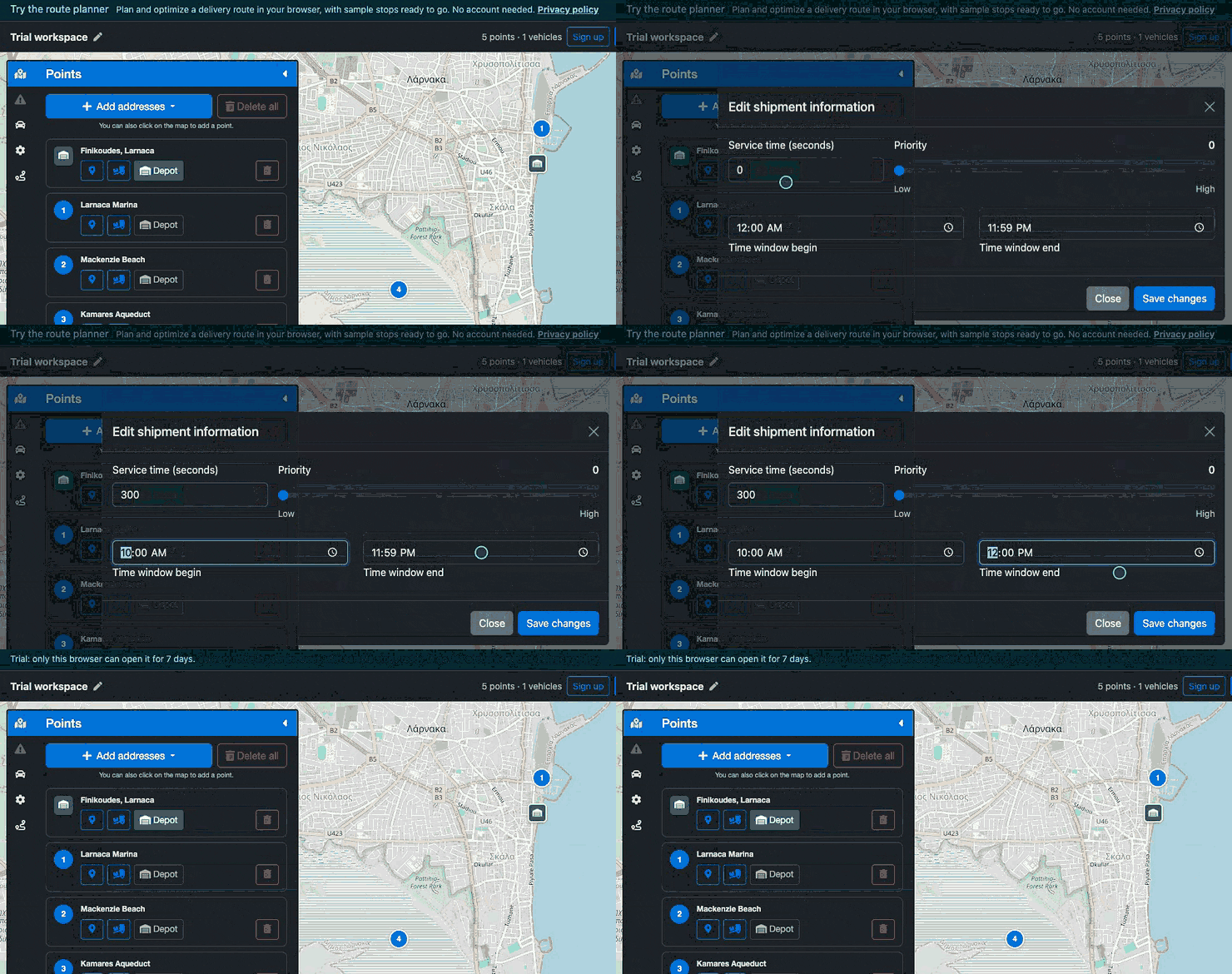
In Points, select Edit shipment information next to a stop.
- Service time (seconds): How long the driver spends at the stop. For example, enter 300 for five minutes.
- Priority: Higher priority makes a stop more important to assign; it does not force it to be visited first.
- Time window begin and Time window end: The allowed time range for the visit. A narrow window may leave the stop unassigned.
Select Save changes, then calculate again to apply the new settings. For shared defaults, use the workspace Settings panel.
Watch how to set a delivery window (English)
Give the driver five minutes at Larnaca Marina and allow the visit between 10:00 and 12:00.
The stop editor uses seconds, but the workspace defaults use minutes. For five minutes, enter 300 in the stop editor or 5 in the defaults. Defaults apply when a stop has no service time or time window of its own. A stop time window is when the driver can visit; a vehicle's working hours are when it can operate.