Import stops from a file
Sign in, then go to Points → Add addresses → Add from a file. Use a CSV, Excel (.xlsx) or plain-text file under 1 MB. Download a template from the dialog to start.
- CSV or Excel: The first row names the columns, in any order. Only
addressis needed; the others are optional:latandlon(decimal coordinates; rows with both are not looked up),customer_name,note,is_depot(1 or 0, true or false) andtime_window_startandtime_window_end(HH:MM, both or neither). Other columns are ignored. Excel files use the first sheet. - Plain text: Put one complete address on each line.
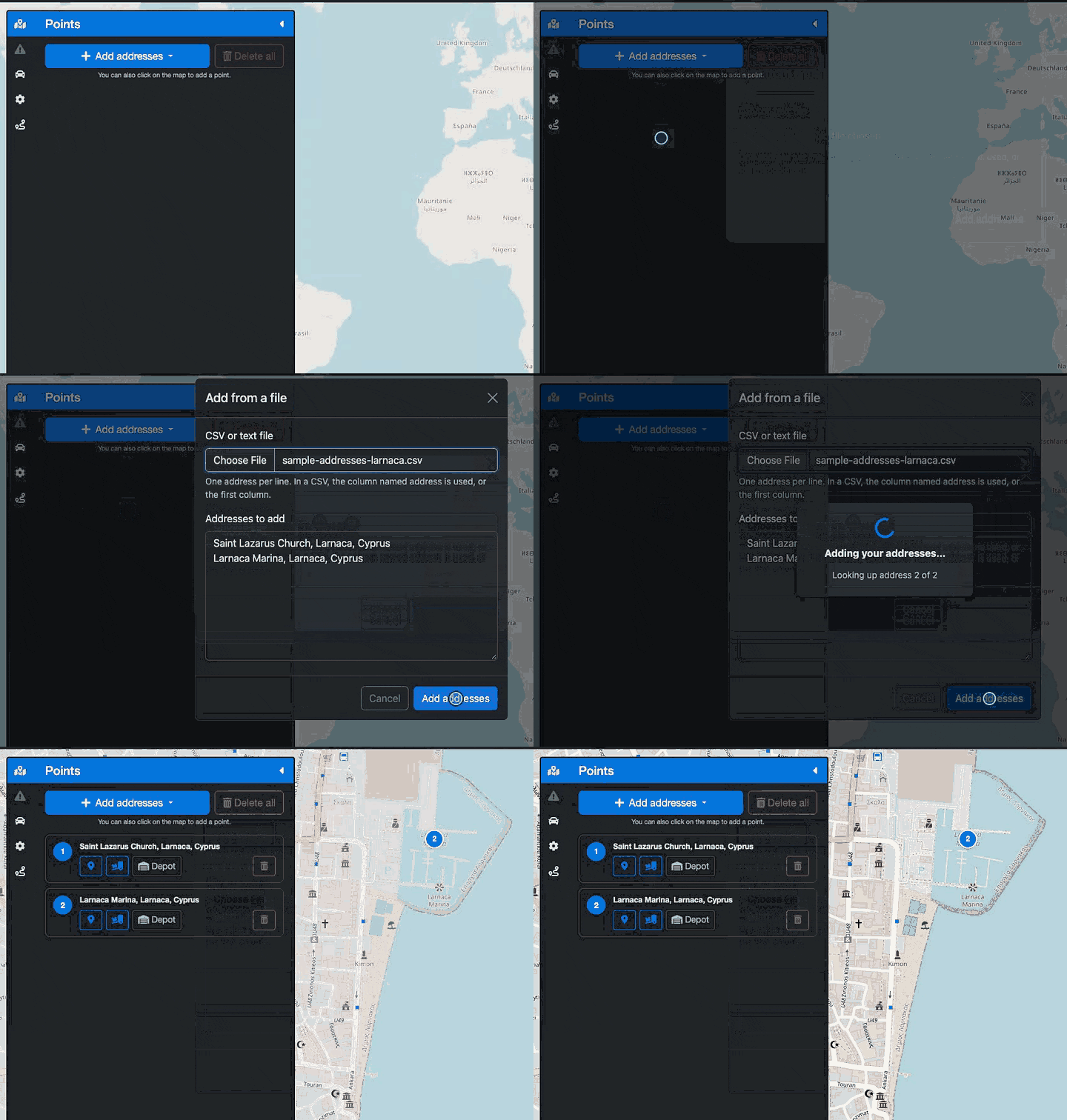
Try it with the Larnaca sample CSV. The original Zürich sample CSV is also available.
- Choose the file in CSV, Excel (.xlsx) or text file.
- Review the stops in the preview. Rows with errors are listed in red and skipped. Select Add stops.
- Check the map pins. If an address appears under Points with errors, use Change position to fix it before calculating.
Watch the Larnaca CSV import demo (English)
Upload the sample CSV, check the two addresses in the preview, and confirm they appear in Points.
A file can hold up to 32 stops for a free account and 128 for a paid account. The stop limit per optimization still applies to the workspace as a whole, including depots and points already in the workspace; the preview warns you when the total goes over it. Addresses without coordinates are looked up one per second, so large files take a moment.