Review and export routes
Open Optimize & results after a successful calculation. Review each vehicle's distance, duration, and timeline. The numbered stops show the order to visit them. Use the eye icon to hide or show a vehicle on the map.
Fix points with errors
Points with errors have no usable map pin and are skipped when you calculate. Use Change position to fix them. If a pin is visible but the planner cannot reach it, check that it is near a road a car can use.
Resolve unassigned stops
If Points unassigned appears, those stops have valid positions but the planner did not schedule them. Read the reasons shown. Check vehicle working hours, stop time windows, and Max tasks. For example, one car with a two-task limit can serve at most two of four delivery stops. Raise the limit or add a car, then calculate again.
Recalculate after changes
Previously calculated results do not update automatically. After changing stops, vehicles, or settings, select Calculate a new solution before sharing or exporting.
Share a driver link
- In Optimize & results, find the vehicle you want to share. Select Share route (the link icon on its route card).
- Select Create driver link if there is no link yet, then Copy link. Anyone with the link can open the route on their phone and mark stops complete without signing in, so send it only to the intended driver.
Send the link with these instructions for drivers.
A driver link shows a copy of the route at the time you shared it. Recalculating does not update that copy. To share a changed route, create a link from the new result and revoke the old one if it is no longer needed.
To revoke a link, open Settings → Manage shared links, find the link, and select Revoke link → Revoke access. This removes the shared copy and driver progress, not the workspace route. Account links stay active until revoked or the workspace is deleted. Guest links also stop working when the trial expires.
For drivers: use the driving assistant
Open the shared route link your dispatcher sent you on your phone. You don't need an account. The numbered stops show the planned visit order. Planned times are estimates, not live arrival times.
- Tap Show map to see the remaining stops on the map.
- While safely parked, tap Navigate to on your next stop. Google Maps opens for directions to that stop. Return to the shared route page after the visit.
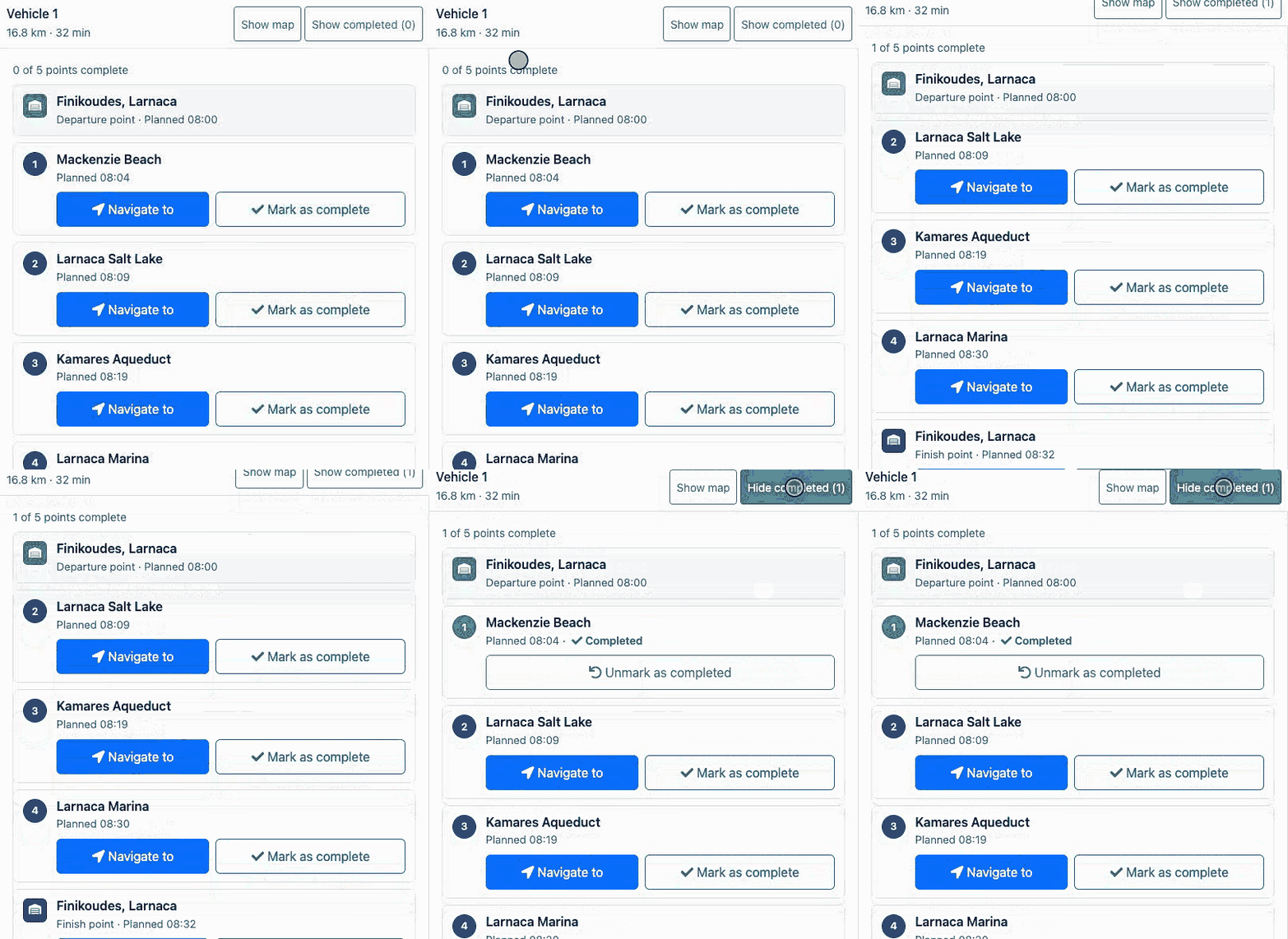
- Tap Mark as complete. The completed count goes up, and the stop is hidden by default. To undo a mistake, tap Show completed if needed, then tap Unmark as completed on that stop.
Watch how a driver marks a stop complete (English)
See the driver's view: select Mark as complete after a visit, then open Show completed to see that stop again.
If the link doesn't open or the route has changed, ask your dispatcher for the latest link.
Export routes
Download a printable PDF route sheet, a spreadsheet, or a file for navigation or mapping tools. See how to export routes and choose a format.